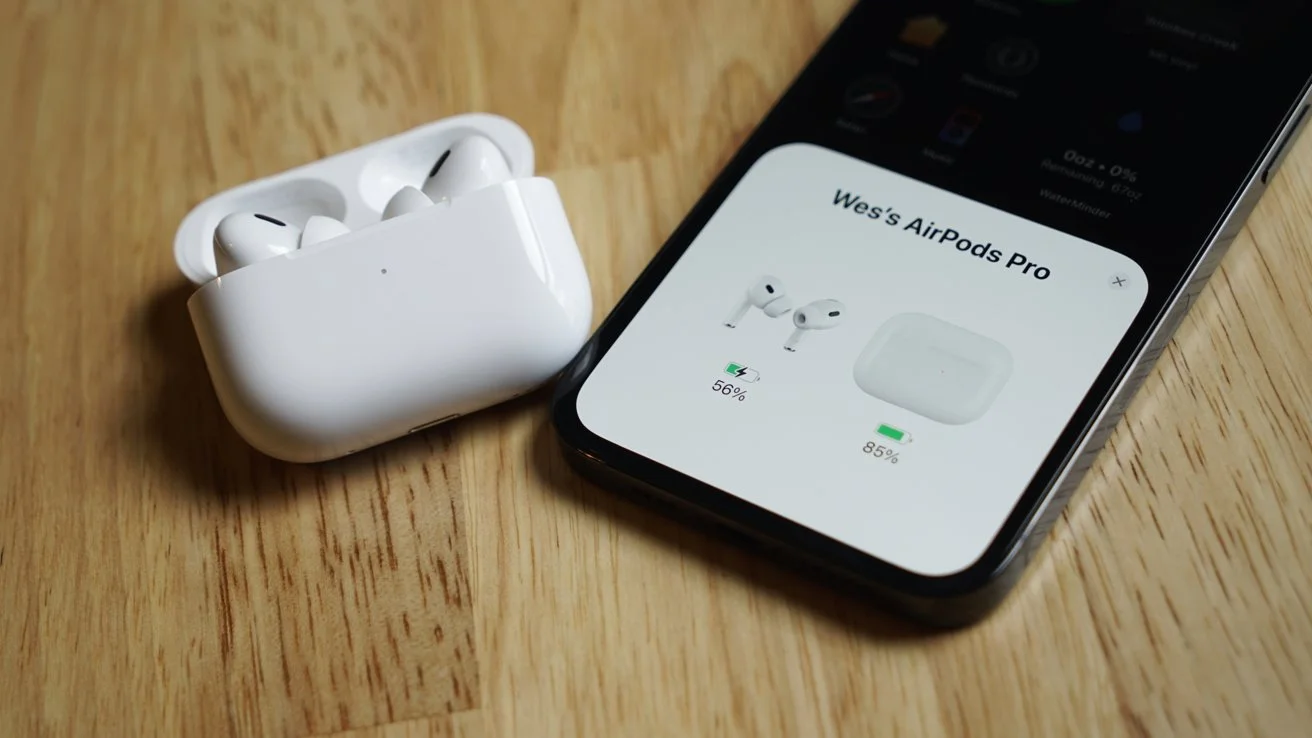
Want to learn how to put AirPod Pros in pairing mode without the hassle? You’re in the right place. Whether you’re setting up a new device or trying to fix a connection issue, this guide will help you pair your AirPod Pros with any device quickly and easily.
From iPhones to Androids, Windows PCs to Smart TVs, we’ve got it all covered. Plus, we’ll go beyond basic setup to explore tips, hidden features, and advanced connectivity tricks. Let’s dive in.
Understanding Pairing Mode on AirPod Pros
Before jumping into the steps, let’s quickly understand what pairing mode is and why it matters.
What Is Pairing Mode?
Pairing mode makes your AirPod Pros discoverable to nearby devices via Bluetooth. It’s the first step in connecting them to phones, tablets, laptops, and more. Without it, your device won’t recognize or connect to your AirPods.
Why You Need Pairing Mode
You’ll need to enable pairing mode when:
- Connecting AirPod Pros to a new device.
- Switching between Apple and non-Apple devices.
- Troubleshooting Bluetooth issues.
- Sharing your AirPods temporarily with a friend or family member.
- Resetting your AirPods after an update or connectivity error.
Knowing how to put AirPod Pros in pairing mode saves time and avoids connection errors. It also ensures your device and AirPods communicate smoothly.
How to Put AirPod Pros in Pairing Mode
Here’s your step-by-step guide to enable pairing mode on AirPod Pros. These steps apply to both first- and second-generation models.
Step-by-Step for iPhone
- Place your AirPod Pros in the charging case.
- Open the lid but leave the AirPods inside.
- Hold the case near your unlocked iPhone.
- Tap Connect when the setup animation appears.
- Follow the prompts, and you’re all set!
- If you’re signed in to iCloud, your AirPods will sync across your other Apple devices automatically.
Step-by-Step for Android Devices
- Put AirPods in the case and open the lid.
- Press and hold the Setup button on the back until the light flashes white.
- On your Android device, go to Settings > Bluetooth.
- Tap on AirPod Pros in the list.
- Confirm pairing when prompted.
Note: While you won’t get the full Apple experience, your AirPod Pros will function as high-quality Bluetooth earbuds on Android.
Step-by-Step for Windows PCs
- Open the AirPods case and press the Setup button.
- Go to Start > Settings > Devices > Bluetooth & Other Devices.
- Click Add Bluetooth or other device.
- Select Bluetooth and choose AirPod Pros from the list.
- Wait for Windows to finish pairing and confirm with a sound.
Step-by-Step for Mac
- Open the case and press the back button until the white light flashes.
- On your Mac, go to System Preferences > Bluetooth.
- Click on AirPod Pros and hit Connect.
- You may also see an option to enable automatic switching between devices—enable this for a smoother experience.
Now you know how to put AirPod Pros in pairing mode on every major platform. But there’s more you can do.
Pairing AirPod Pros With Other Devices
AirPods aren’t limited to just phones and laptops. Here’s how to connect them to other commonly used gadgets.
Apple Watch
- Put AirPods in pairing mode.
- On your watch, open Settings > Bluetooth.
- Tap AirPod Pros to connect.
This is especially useful if you’re heading out for a run and want to leave your phone behind.
Smart TVs
- Open the Bluetooth settings on your Smart TV.
- Place your AirPod Pros in pairing mode.
- Select them from the list of available devices.
- Confirm the pairing.
Some TVs may require a firmware update or special adapter. Check your model’s support page.
Game Consoles (e.g., PlayStation, Xbox)
Most consoles don’t support Bluetooth audio natively. You’ll need a Bluetooth adapter:
- Plug in the adapter.
- Enable pairing mode on both devices.
- Connect and start gaming wirelessly.
Wireless gaming audio is perfect for late-night sessions when you don’t want to disturb anyone.
Fixing AirPod Pros Not Pairing
Even if you know how to put AirPod Pros in pairing mode, issues can still pop up. Here’s how to troubleshoot.
Resetting AirPod Pros
- Put the AirPods in the case and close the lid.
- Wait 30 seconds.
- Open the lid.
- Hold the Setup button until the light flashes amber, then white.
- Try pairing again.
This clears old connections and restores default settings.
Check Battery Levels
Make sure both your AirPods and the case have enough charge. A low battery can interrupt the pairing process or prevent your device from recognizing the AirPods.
Bluetooth Conflicts
- Turn off Bluetooth on other devices nearby.
- Restart your phone or computer.
- Retry the pairing process.
Also, check for software updates that could be affecting your device’s Bluetooth stability.
Advanced Tips for Better Connectivity
Take your AirPod experience up a notch with these pro tips. These are especially helpful after you’ve mastered how to put AirPod Pros in pairing mode.
Disconnecting from Other Devices
AirPods sometimes auto-connect to previously paired devices. To fix this:
- Go to Bluetooth settings on the old device.
- Tap the “i” icon next to AirPod Pros.
- Choose Forget This Device.
This prevents random switching and ensures your AirPods connect to the correct device.
Use Siri and Custom Shortcuts
- Open the Settings app on your iPhone.
- Tap AirPods Pro > Siri.
- Enable Hey Siri and assign tap gestures.
You can even create custom shortcuts like:
- “Call Mom”
- “Play favorite playlist”
- “Check my calendar”
- “Open Maps”
These small tweaks make your AirPod Pros much more functional.
Optimize Battery Charging
- Open Settings > Bluetooth.
- Tap the i next to AirPod Pros.
- Enable Optimized Battery Charging.
This helps keep your battery healthy over time and prevents overcharging.
Cleaning and Maintaining Your AirPod Pros
Don’t forget to clean them regularly:
- Use a soft, dry, lint-free cloth.
- Avoid liquids and harsh chemicals.
- Clean the mesh with a dry cotton swab.
- Store them in the case when not in use.
- Avoid exposing them to extreme temperatures.
Proper maintenance improves performance, enhances sound quality, and extends their life. Your AirPods will also look better and function more reliably.
FAQs on AirPod Pro Pairing
What color is the light for pairing mode?
White. It means your AirPods are ready to pair. Amber signals resetting mode.
Can I pair AirPod Pros with multiple devices?
Yes, but not simultaneously. You must switch manually unless you’re within Apple’s ecosystem where automatic switching is supported.
What to do if AirPod Pros won’t connect?
Reset them and repeat the pairing process. Also, try updating your phone or Bluetooth drivers.
Do I need an app to pair with Android?
No, the native Bluetooth settings are enough. However, third-party apps can help access battery levels or remap gestures.
Is it safe to pair with public devices?
Only pair with trusted devices to avoid privacy risks. Always remove your AirPods from shared devices after use.
Conclusion
Now that you know exactly how to put AirPod Pros in pairing mode, you can enjoy seamless wireless audio anywhere.
Whether you’re setting them up for the first time or reconnecting them after an issue, these steps ensure success. From smartphones to smart TVs and even gaming consoles, your AirPods are built for flexibility.
Remember to reset when needed, keep your AirPods clean, disconnect old devices, and explore their full potential with Siri, shortcuts, and battery optimization settings.
If you’re looking to elevate your audio experience, start with the basics—mastering how to put AirPod Pros in pairing mode—and build from there.
Stay connected. Stay wireless. Stay in control.