The op25 web gui has become one of the most useful tools for SDR enthusiasts who want a visual and browser-based way to monitor digital radio systems. Instead of relying on complex terminal commands, users can control and observe radio decoding through an interactive dashboard. Whether you are building a DIY digital scanner or improving your software defined radio setup, understanding how this interface works can make monitoring easier, faster, and more efficient.
In this complete guide, you will learn what the interface is, how it works, its features, setup basics, and why many users prefer it over traditional command-line operation.
What Is OP25 Web GUI and How Does It Work?
Before exploring the interface itself, it helps to understand OP25.
OP25 is open-source software designed to decode APCO Project 25 (P25) digital radio communications. These systems are widely used by public safety agencies such as police, fire departments, and emergency responders. Using SDR hardware like RTL-SDR dongles, OP25 processes raw radio signals and converts them into readable data and audio.
The web interface adds a graphical control layer on top of the core decoder.
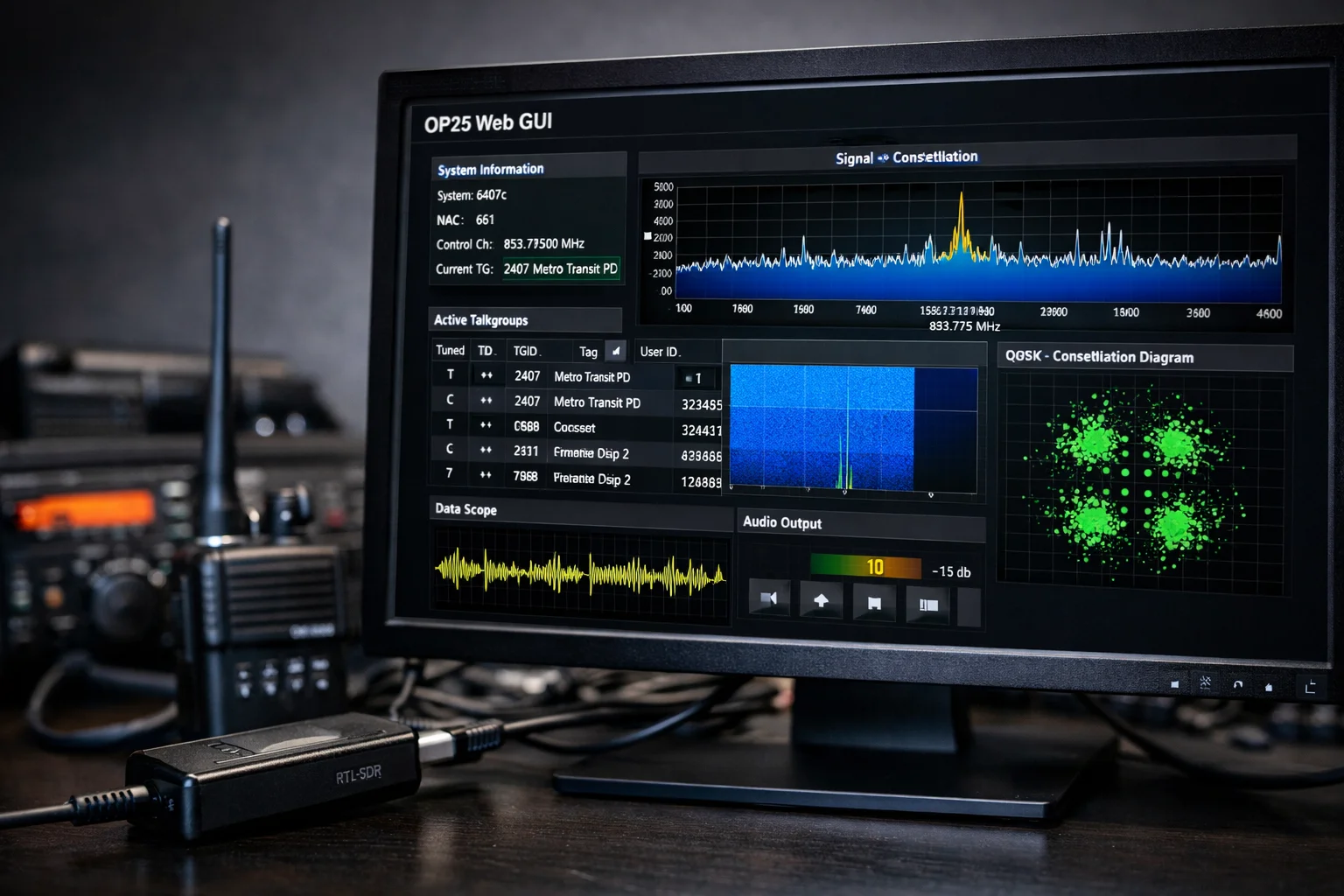
Instead of interacting through text commands, users open a browser and access a live dashboard that displays signal data, talkgroups, and system status.
Overview of OP25 Software
OP25 runs on Linux systems and uses GNU Radio components to perform digital signal processing. It handles:
- Control channel decoding
- Voice channel switching
- Trunked radio system tracking
- Digital voice extraction.
This allows users to monitor complex radio systems using relatively inexpensive hardware.
Role of the Web Interface
The graphical interface provides a visual control center. It simplifies monitoring by showing real-time information without requiring deep command-line knowledge.
Users can:
- View talkgroups
- Monitor signal strength
- Adjust settings
- Observe system activity.
How the Interface Communicates With OP25
The web interface works through a built-in HTTP server. When enabled, OP25 sends live data to the browser using structured updates. This creates a responsive dashboard that updates in real time.
Key Features of OP25 Web GUI
The popularity of the interface comes from its practical features. Instead of scrolling terminal output, users interact with organized visual elements.
Live Talkgroup Monitoring
The dashboard displays active talkgroups as they appear. Users can see:
- Talkgroup IDs
- Activity status
- System identifiers.
This helps identify which channels are currently transmitting.
Signal Visualization Tools
Advanced users benefit from visual tools such as:
- Constellation diagrams
- Spectrum views
- Signal plots.
These features help with tuning and troubleshooting reception problems.
Remote Browser Control
One major advantage is remote access. The interface runs in a web browser, meaning users can monitor from:
- Another computer
- Smartphone
- Tablet.
This makes headless setups on Raspberry Pi devices very practical.
Trunked Radio System Tracking
The system automatically follows trunked communications. Instead of manually tuning frequencies, the software tracks voice channels based on control channel data.
Real-Time Status Information
Users can quickly view:
- Frequency information
- System parameters
- Decoding performance.
This improves awareness during monitoring sessions.
OP25 Web GUI Setup: Beginner Overview
Many people search for setup guidance because initial configuration can seem technical. The process becomes easier when broken into steps.
Required Hardware
Typical hardware includes:
- RTL-SDR USB dongle
- Raspberry Pi or Linux PC
- Antenna suitable for local frequencies.
Some advanced users use higher-end SDR devices for better performance.
Required Software Dependencies
The software runs on Linux environments with GNU Radio and SDR drivers installed. The commonly used version is the “boatbod” fork of OP25, which includes improvements and active maintenance.
Installing OP25
Installation usually involves cloning the repository and compiling dependencies. Many guides recommend prebuilt scripts that simplify installation.
Enabling the Web Interface
When launching OP25, users enable the interface through specific parameters. This starts the HTTP server that powers the dashboard.
Accessing the Dashboard
After launching, users open a web browser and navigate to the configured address and port. Once loaded, the graphical interface displays system activity in real time.
Understanding the OP25 Web GUI Dashboard
The dashboard layout is designed to present important information quickly.
Talkgroup Display Panel
This section lists active channels and talkgroups. Users can see which transmissions are active and identify communication patterns.
Signal Graphs and Data Views
Visual tools help users understand signal quality. Constellation diagrams show how well signals are being decoded, while spectrum views assist with tuning.
Control Buttons and Navigation
Common controls include:
- Holding specific talkgroups
- Skipping unwanted channels
- Adjusting display settings.
These functions make the system feel similar to a traditional radio scanner.
Audio Playback Options
Depending on configuration, audio may play locally or stream through network services. Some setups allow remote listening from other devices.
Why Users Prefer OP25 Web GUI Over Terminal Mode
Many enthusiasts start with command-line operation but later switch to graphical control.
Reasons include:
- Easier monitoring experience
- Faster understanding of system activity
- Reduced need for memorizing commands
- Better visualization for troubleshooting.
The visual interface also lowers the learning curve for beginners who may feel intimidated by terminal output.
Common Problems and Troubleshooting
Search trends show many users look for troubleshooting solutions.
Interface Not Loading
This usually relates to incorrect launch parameters or firewall settings. Ensuring the HTTP service is enabled and the port is accessible solves most cases.
Port Access Issues
If the dashboard cannot be reached from another device, users should check network configuration and verify the correct IP address.
Blank Dashboard
Signal or configuration issues can result in empty displays. Checking SDR hardware and configuration files often resolves the problem.
Network Configuration Errors
Remote access requires correct networking setup. Misconfigured routers or incorrect addresses are common causes.
Advanced Features Many Users Overlook
Beyond basic monitoring, the interface supports advanced capabilities.
Multi-System Monitoring
Some configurations allow monitoring multiple trunked systems simultaneously.
Remote Streaming
Users can stream audio feeds over the internet or local network, turning their setup into a shared monitoring station.
Custom Dashboards
Advanced users sometimes modify the interface layout or integrate custom scripts.
Signal Analysis for Optimization
Constellation and spectrum views help fine-tune antennas and improve decoding performance.
OP25 Web GUI vs Other SDR Interfaces
Several alternatives exist in the SDR ecosystem.
Compared With SDRTrunk
SDRTrunk provides a graphical interface out of the box but may require more system resources.
Compared With DSDPlus
DSDPlus is popular among Windows users but lacks the integrated web-based control approach.
Compared With Hardware Scanners
Traditional digital scanners offer simplicity but often cost much more. Software solutions provide flexibility and customization.
Legal and Ethical Considerations
Monitoring radio communications depends on local laws. Some transmissions are encrypted or restricted. Users should always understand regulations in their region before monitoring.
Who Should Use OP25 Web GUI?
The interface is ideal for:
- SDR hobbyists
- Radio monitoring enthusiasts
- Technical users interested in digital radio systems.
It especially benefits those running headless setups or wanting remote access to their monitoring system.
Final Thoughts
The op25 web gui transforms complex digital radio decoding into an accessible visual experience. By combining powerful backend processing with a browser-based interface, it allows users to monitor P25 systems with greater control and clarity. Whether you are building your first SDR project or optimizing an advanced monitoring station, learning to use this interface can significantly improve your workflow.